With Zno Gallery’s retouching feature, you can enhance photos using AI-powered presets- whether during upload, after they’re added to your gallery, or by experimenting and creating your own custom presets. You’ll also have full control to track progress, restore originals, and decide what your clients can view.
On this Page
- Pricing
- Select Retouching Presets for Photos to Upload
- Select Retouching Presets for Photos Already Uploaded
- PresetPlay Window
- Track Retouching Status
- Revert to Original / Use Retouched Version
- Client End
Pricing
Retouching operates on a credit model: applying a preset to a photo consumes one credit.
If you don’t have enough credits, you’ll be prompted to purchase more during use of this feature.
Alternatively, credits can be purchased in advance under Zno Retoucher on the Pricing Page.
Select Retouching Presets for Photos to Upload
When retouching is enabled, you’ll need to choose an AI Scene and Preset before starting your upload. The system will then verify your credit balance and automatically apply the selected preset to all uploaded photos.
To preview how presets will look, open the PresetPlay window by clicking “here.” From there, you can test existing options or create your own custom presets.
Select Retouching Presets for Photos Already Uploaded
Users can select photos in the gallery and apply Quick Retouch.
A preset selection window will open, allowing you to choose a Scene, Preset, and optionally a Watermark to apply after retouching. The system will then verify your credit balance and automatically apply the selected preset to the chosen photos.
PresetPlay Window
The PresetPlay window is designed for testing and customizing presets. You can:
Upload test images to compare before-and-after results.
Explore built-in presets.
Adjust settings to create and save your own custom styles for future use.
(Please Note: Photos uploaded into PresetPlay are for testing only. They are temporary and will not appear in the gallery.)
Track Retouching Status
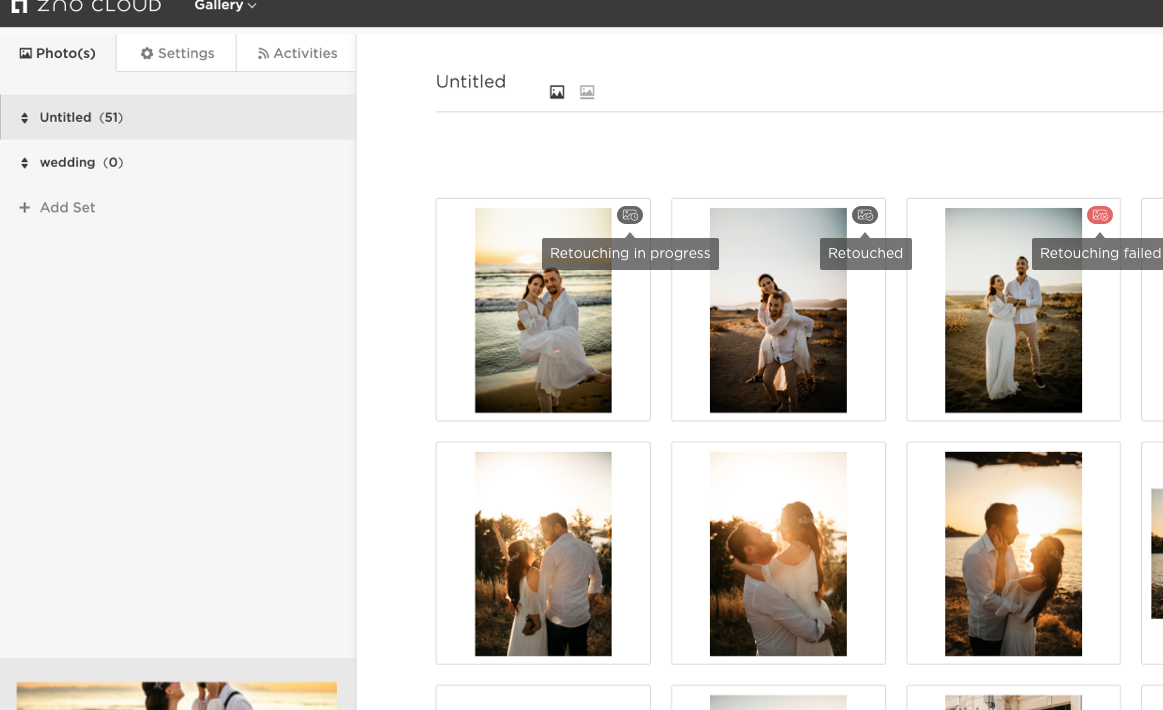
Gallery photos display status indicators to keep you updated on retouching progress:
In Progress – The retouching process is still running.
Completed – The retouched photo has been successfully applied and is now in use.
Failed – The retouching did not complete, and the original photo remains unchanged.
Revert to Original / Use Retouched Version
In the single-photo view, you can switch between the Original and Retouched versions at any time. Reverting to the original does not delete the retouched file, it remains stored in case you want to switch back later. Retouching can also be applied multiple times, and each new retouch always starts from the original photo.
Client End
If you keep the retouched version, your clients will see, download, or purchase the edited photo across storefronts and digital downloads. If you revert to the original, your clients will instead see the unedited photo.
If our team can be of any additional assistance, please send us an email to support@zno.com or give us a call at 1-888-966-9539.