In this Article:
- Getting Started
- Installing on Windows
- Installing on Mac
Zno Instant allows you or your clients to print your photos on site. Once you finish setting up, you are ready to print on demand!
Getting Started
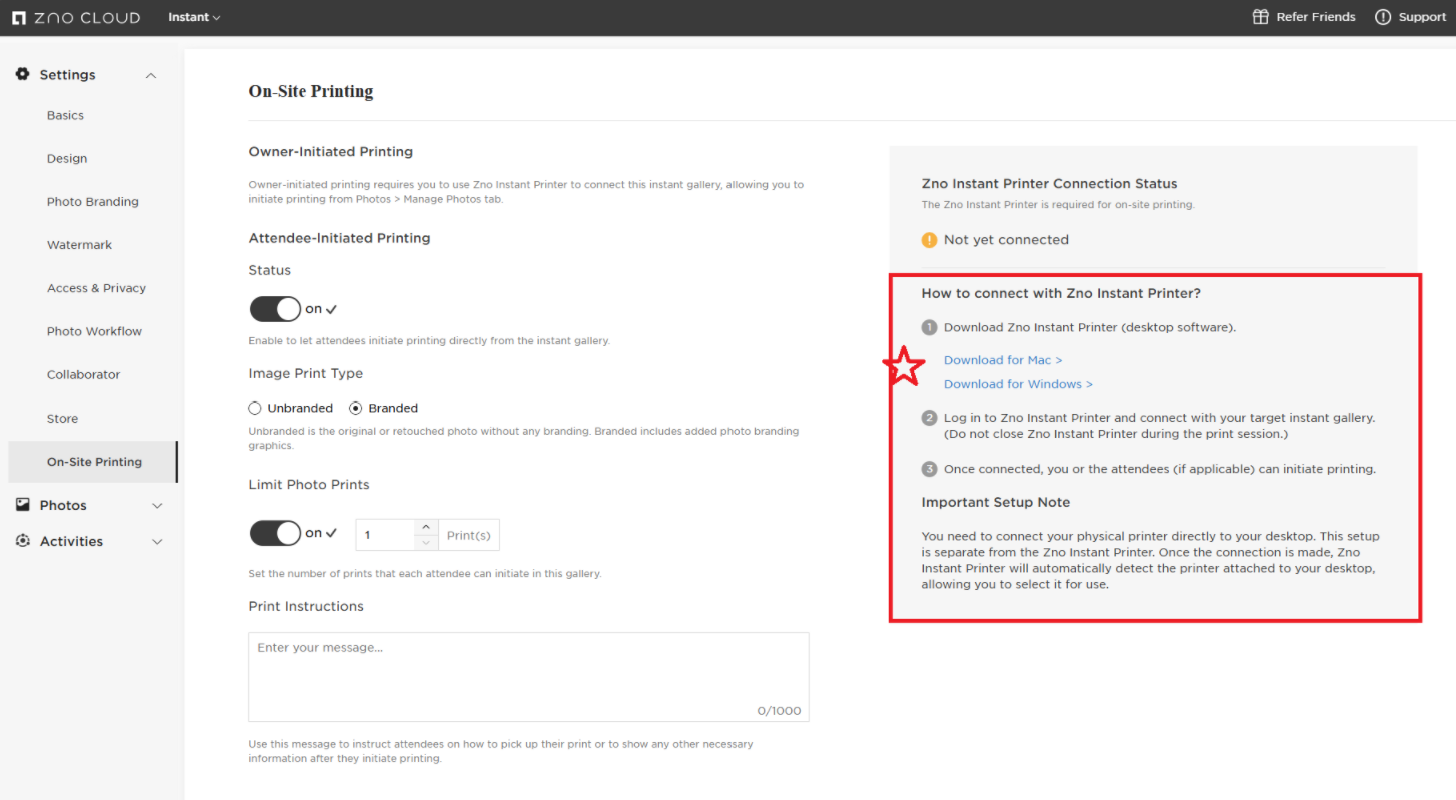
You can find the On Site Printing option in the Instant Gallery Settings of each individual gallery.
Once you have clicked On-Site Printing, you can see where you can set up who initiates printing the downloadable software links on the right. Choose the download file based on your operating system.
 Instructions for Windows:
- You will need to double click the executable file in your downloads folder and then allow the file to make changes to your system.
- You will be prompted to browse to the installation location. We recommend Program Files and then click Install.
- After clicking Install, you will need to click Finish.
Instructions for Mac:
1. You will need to double click the executable file in your downloads folder and allow the file to make changes to your system.
2. Double click on the Zno Instant Printer application when the screen below appears to continue with the installation.
.
3. Click on Open to finalize the installation.
When you open the software, you will be asked to input your credentials:
And after you do this, you will be led to the printing software screen. From here, you will be able to select your instant gallery and printer of choice. You will also be able to manage printing tasks here. For more information, please visit On-Site Printer Set Up.
Please note: You will need to have the printer driver for your printer installed and updated on your computer to use Zno On-Site Printing.
If our team can be of any additional assistance, please send us an email to support@zno.com or give us a call at 1-888-966-9539.